Web App
Run Agentiqa in your browser — nothing to install, the browser runs in the cloud.
The Agentiqa web app runs entirely in your browser. When you start a test, the browser being tested runs in Agentiqa's cloud, so there's nothing to install and no setup — just open the app and go.
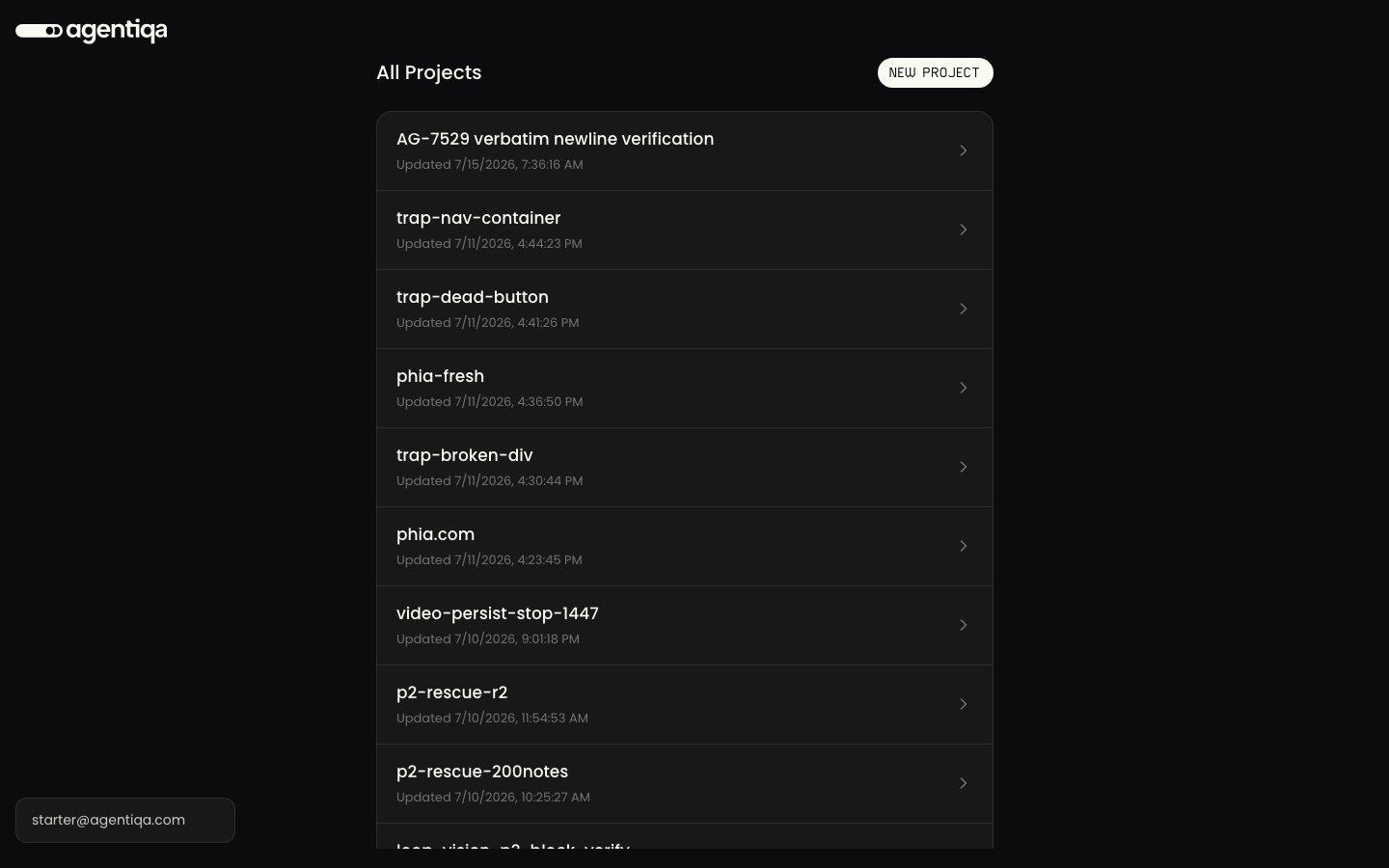
Open web.agentiqa.com and sign in.
Run your first test
- Create a project. Enter the URL of the app you want to test and give the project a name.
- Open the Assistant and say what you want — from "What can you test here?" to "Test the checkout flow." The agent figures out the rest (see the Assistant guide).
- Review the checkpoints. Approve or redirect the agent's scope and plan, then confirm the bugs it reports.
- Keep the results. Your findings, saved test plans, and everything the agent learns about your app carry over to your next visit.
The web app and the desktop app have the same features — the feature guides apply to both.
What the web app can't do
A few things need to run on your own machine, so they're only in the desktop app:
testing browser extensions or crypto wallets, saving run files to your computer,
and testing a site running on http://localhost. See
Desktop vs Web.
To test a localhost app, use the desktop app or the
CLI.